
The gaming world has gotten very much accustomed to the 3rd person over the shoulder camera style of games, especially with the advent of action-adventure games. Though the gaming industry has always experimented with newer ways of interacting with their games, most people are wanting to get back into the comfortable embrace of the aforementioned play style.
V Rising is a beautiful survival game that is experienced through the isometric camera whereby the player might feel distant from the action, not only that players do want to take in the unique art style of this game up close and personal. Identifying this obscure need modders have created a mod that enables you to lower the camera to over the shoulder. .
Related: All V Rising Abilities Ranked (Blood, Unholy, Frost, Illusion, Chaos)
We will be teaching you how you download and install this mod to your copy of V Rising.

Downloading And Installing The Camera Mod
The V Rising community is clamoring for a way to zoom in more and play the game as an MMO and luckily this mod has come along to cater to our needs. Be aware of the fact that this is a mod so there are some issues with the proper optimization with the game but it does function quite amazingly in most situations. With that said you need to first download and install this mod and the steps below will guide you through the steps:
Related: Best Console Commands / Cheats In V Rising
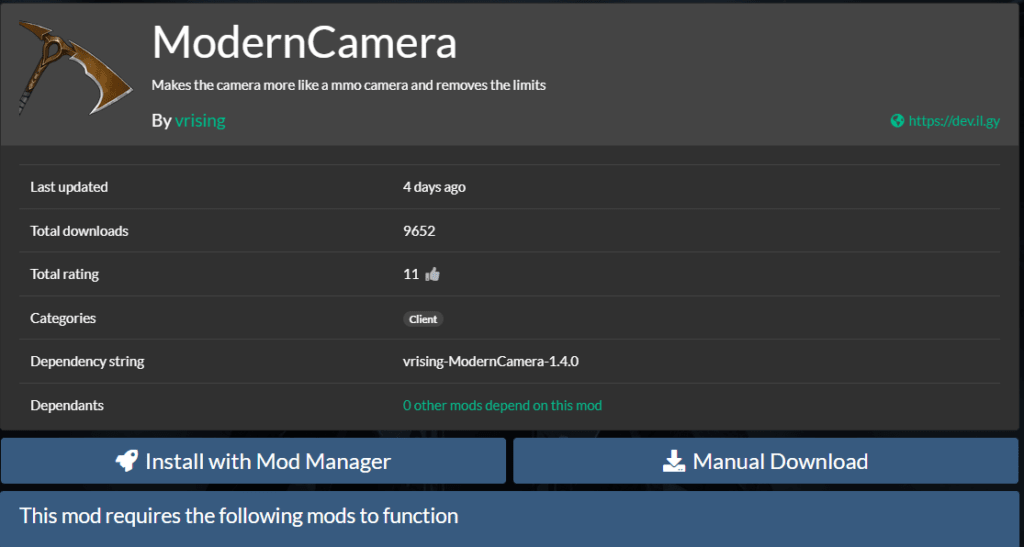
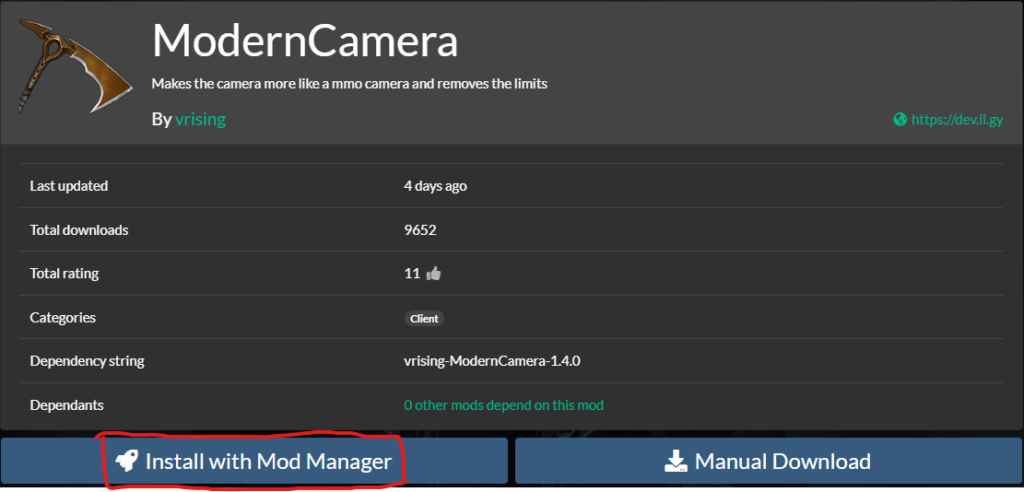
- Visit the link below and download the ModernCamera mod by pressing the Manual Download button. No need to worry as this link and download are safe.
https://v-rising.thunderstore.io/package/vrising/ModernCamera/

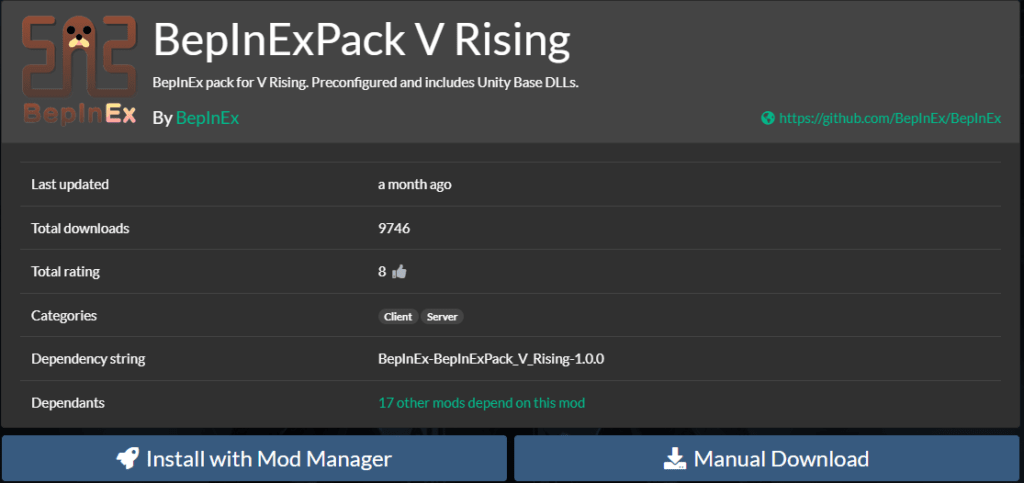
- Next you need to download BepInExPack V Rising from the link below. Again this file is safe to download so no need to worry.
https://v-rising.thunderstore.io/package/BepInEx/BepInExPack_V_Rising/

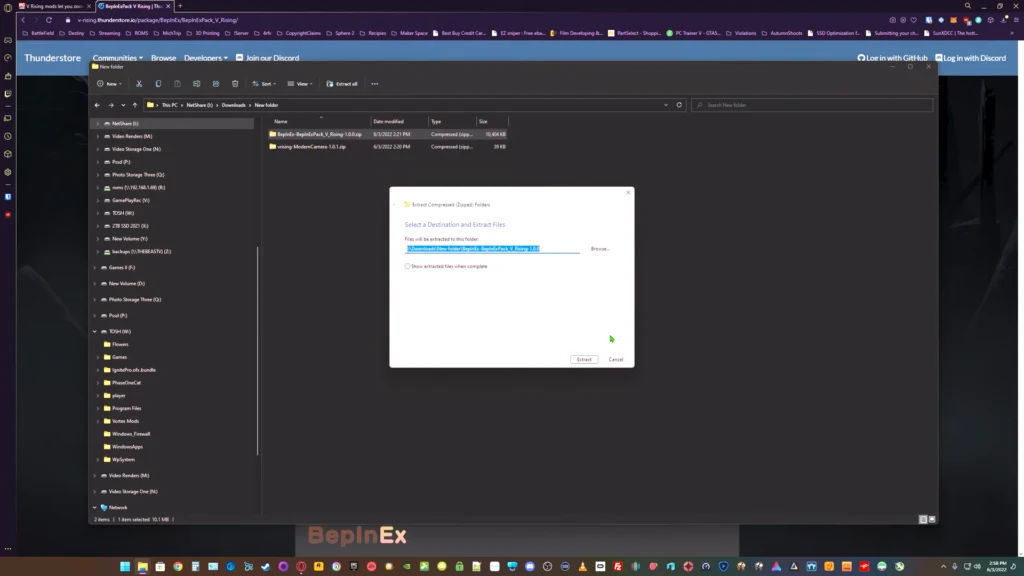
- With both files downloaded extract the files using 7-Zip or windows default extractor from the folders to your base folder.

Related: Best Scourgestone Farming Guide – V Rising
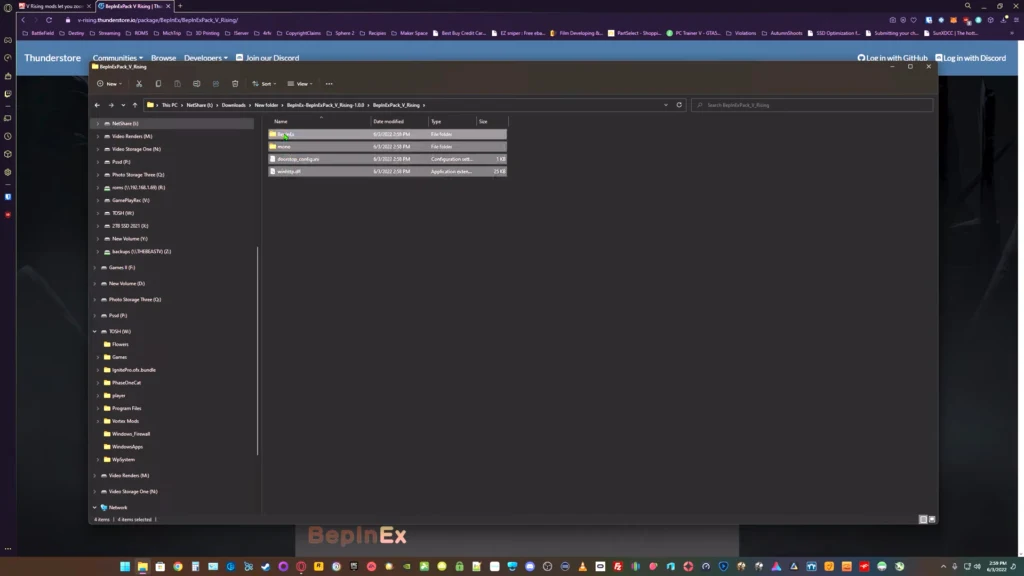
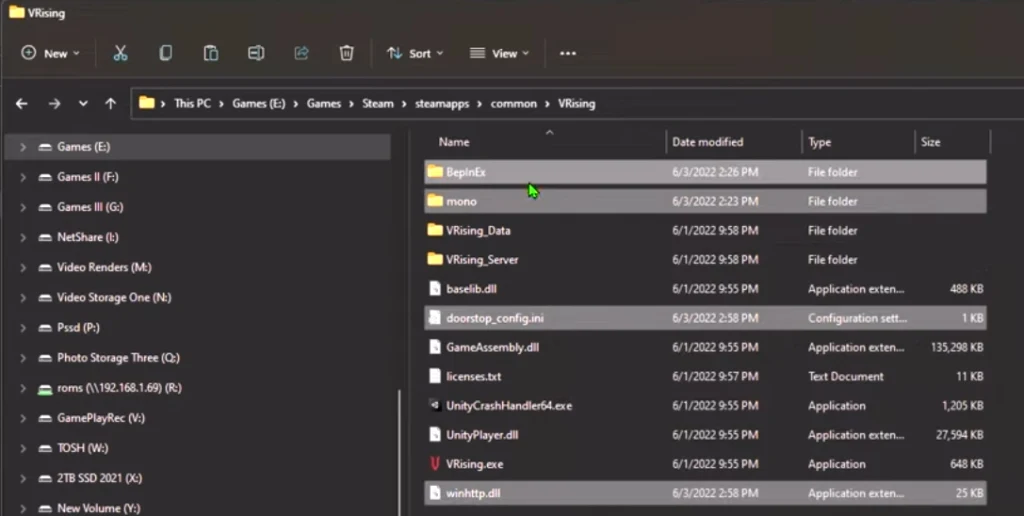
- Next we need to first install BepInExPack V Rising files to the game folder. Inside the BepInEx folder, you will see the below seen 4 files that you need to copy and paste where the V Rising is installed.

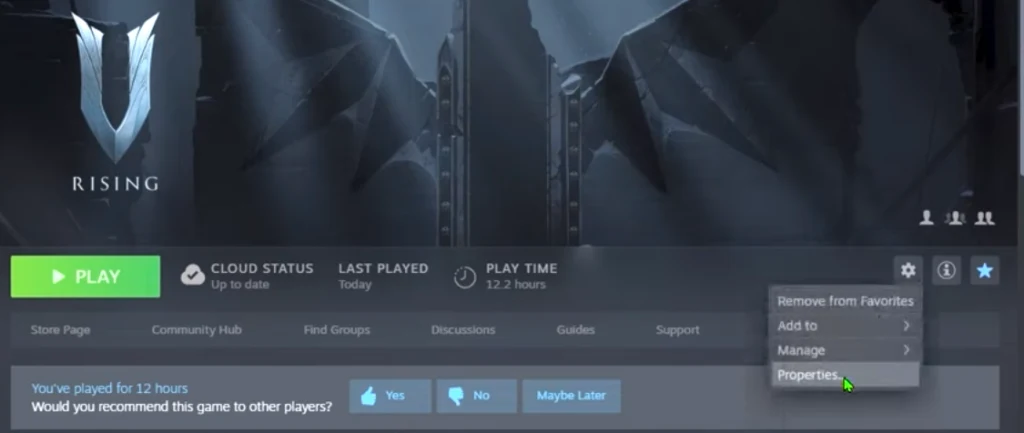
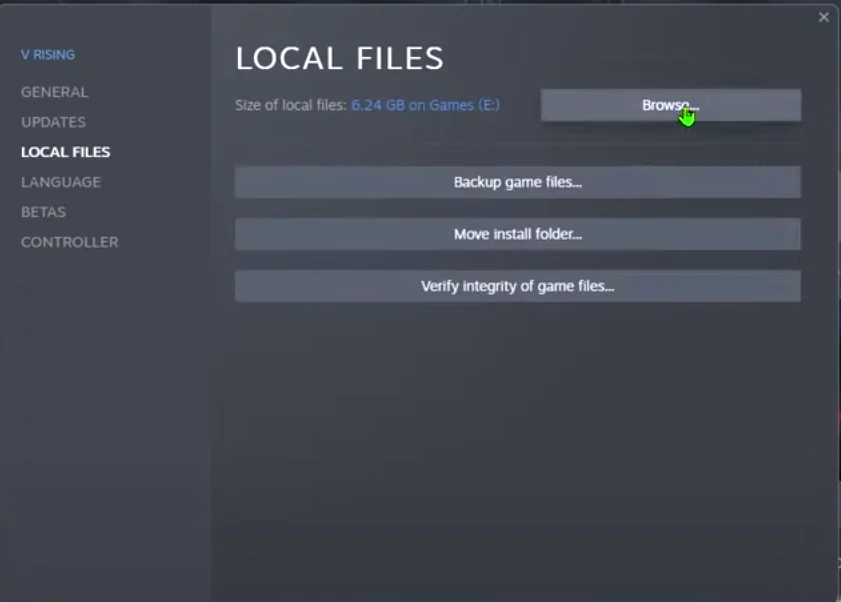
The easiest way to locate where your V Rising is installed is to come into your Steam library click on the Gear icon go to Properties and then Local Files and select Browse… and that’s going to open your V Rising folder.


Paste the files copied previously in this folder as can be seen in the picture below.

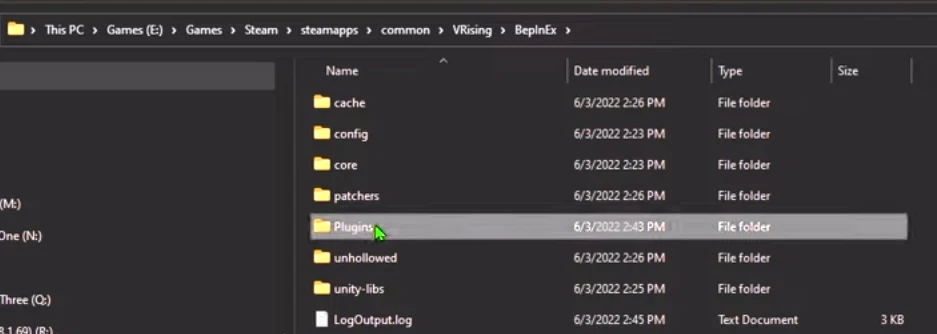
- Now you’re going to go inside the BepInEx folder and in here you are going to create a new folder and rename it Plugins.

Related: PvE Vs PvP in V Rising – What Should You Choose? Complete Guide
- Go back to the downloaded ModernCamera folder and copy just the ModernCamera.dll file from this folder and paste it to the BepInEx->Plugins folder that we created in the last step.

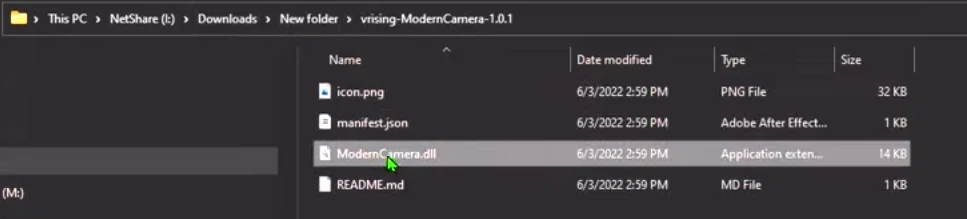


- Now it is time to run the game and check whether the mod is working.

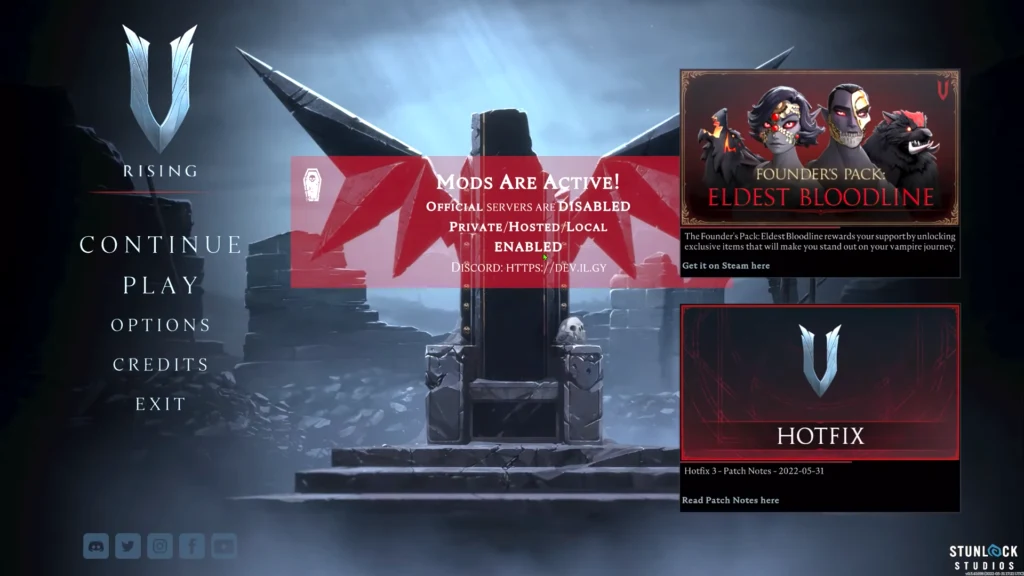
Once you’re in the game you’re going to see a MODS ARE ACTIVE prompt eluding to the fact that the mod is working. If this doesn’t pop up then you’ve probably copied something into the wrong folders so just retry the steps above and make sure everything is in the right place.
Related: How To Obtain Vampire Forms in V Rising?
Mod Consideration
The prompt MODS ARE ACTIVE OFFICIAL SERVERS ARE DISABLED means you can only play on your private servers while these mods are active and public servers will be closed off till you remove the said mod.
For those of you that cannot see the .INI and .DLL files in the BepInEx folder make sure your show hidden files option is enabled in the folder settings. It is also recommended that if you don’t know how to do all of this, maybe don’t bother modding games manually. Just use a mod manager.
https://v-rising.thunderstore.io/package/vrising/ModernCamera/
Related: Best V Rising PvP Builds – Complete Guide (2022)
Playing With The Mod
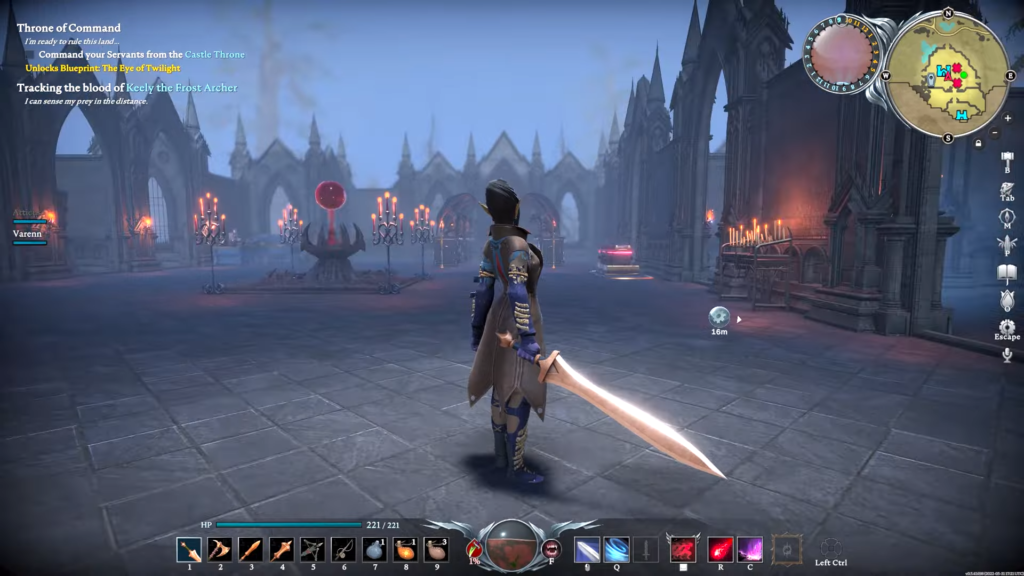
When you get in the game you’re going to see a big difference once you start zooming in and the camera locks in behind the character totally revamping the way you interact with the game and it does look amazing.
One thing we have noticed with this mod is that when you’re aiming spells it’s a bit wonky at the moment. As the game is designed to be played from a top-down angle the aiming of spells is automatically bound to the ground you are pointing with your mouse. With the mod active the ground where your mouse is pointing towards will be your aim and in certain circumstances and camera angles the aiming will be off to the side of the target. To counter this problem it is recommended that you aim your ranged spells at the feet of your target as this will function as a ground targeting as the developers intended.
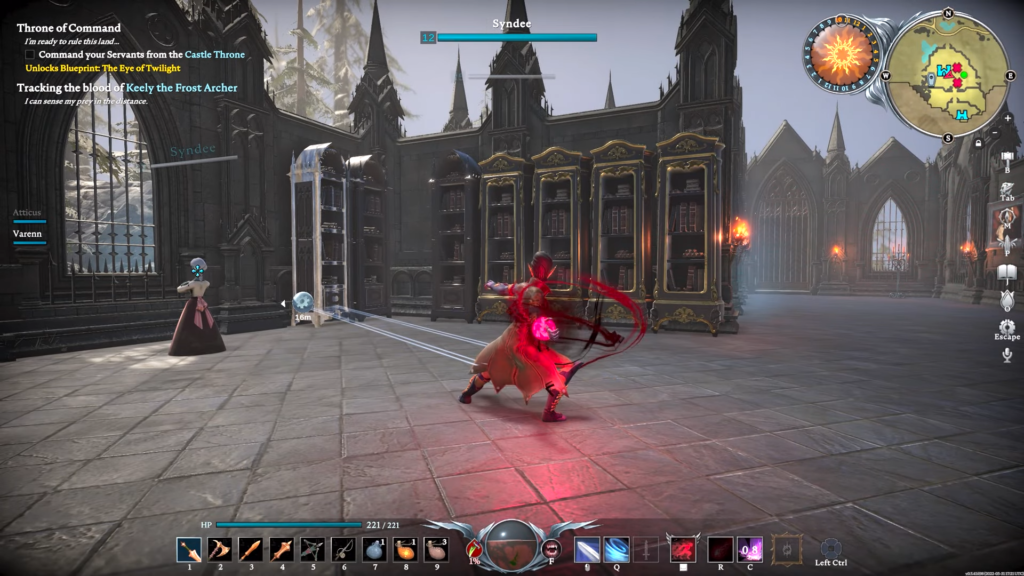
As you can see in the picture above that the mouse is targeting the woman’s head but the actual spell casting lines are off to the right. This is because the mouse is actually pointing towards the hills outside. So just aim at the feet/ground beneath the target and this issue can be bypassed.
This mod adds a whole another perspective to experiencing the game and though there is an aiming issue and the mod isn’t properly made to cater to the isometric design of V Rising it’s still a very welcomed addition to the game and one that you can easily opt for if you are open to modding. Do keep in mind the game is in early access and constantly updated so there is a chance that a future update might just break this mod.